Author: Automotive expert specializing in Chinese vehicles, with hands-on experience in diagnostics, maintenance, and real-world operation of ICE, hybrid, and electric models.
avtomir.site Editorial Team · Updated: September 28, 2026
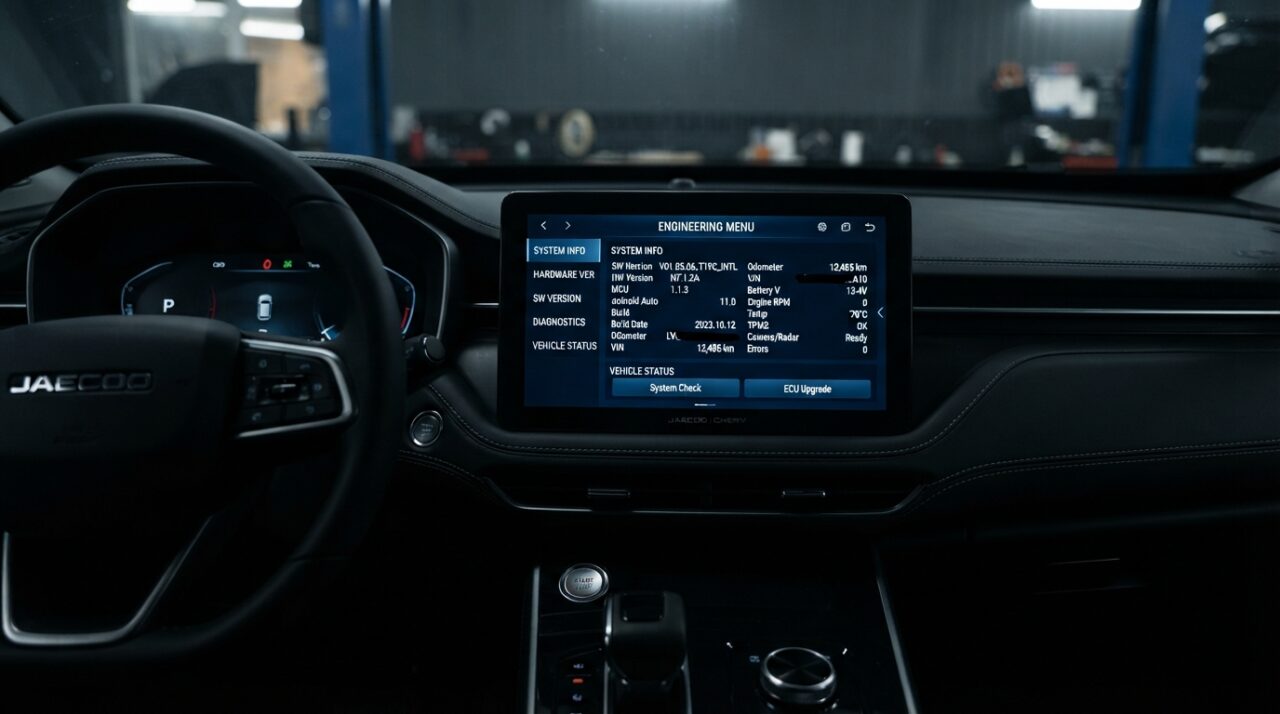
The engineering menu on Chery, OMODA, and JAECOO vehicles is a hidden section of the infotainment system (head unit) meant for diagnostics, checking the software version, and service-level settings. Most owners will never need it, but it’s where you can check the firmware version and, on some units, enable ADB mode. Below is what’s known about entering it on different models, what’s inside, and what not to touch.
Important. The engineering menu is not a regular user settings screen. Changing unfamiliar parameters can break the infotainment system or specific vehicle functions. The entry method varies by model, year, and firmware version — there is no single universal method or password.
The methods below come from a third-party installation guide and from owners’ own reports — not from official manufacturer documentation. Your firmware version may behave differently.
Model
Path
Source
JAECOO J7
Settings → System → tap the word “Version” several times
JCarTools installation guide
JAECOO J8 / EXEED RX
Settings → System → tap the image on the settings screen
Settings → Version Information → rapid taps (one owner counted 15–20) in a specific screen area
Drive2 (Russian-language)
Chery Tiggo 7 Pro (T1E)
System → Storage → bottom-right corner, roughly 7 taps until a beep sounds
4PDA (Russian-language)
As the table shows, the exact tap location and tap count differ by model — sometimes you need to hit a labeled element, sometimes an invisible zone of the screen. If it doesn’t work on the first try, try a nearby spot and tap quickly in the same location.
For the JAECOO J7, the JCarTools guide also mentions an alternative: launching engineering mode from a USB drive loaded with a specific flag file. This is a third-party method — use it at your own risk.
Tip. If you can’t find the right menu item or nothing happens, try switching the vehicle’s interface language to English — several guides note this makes the relevant items easier to locate.
What’s inside the engineering menu
The exact set of items depends on the head unit’s software version. Based on owner reports, you may find:
software version information;
a USB 2.0 / USB2.0 AUTH item and a DEVICE button — used to enable ADB mode;
an Encryption section (protected items that require a password);
IVI ENGMODE — an engineering mode for the instrument cluster (reported on the Tiggo 9);
BATTERY INFO — battery status details (reported on the Tiggo 9);
ICM Upgrade — an instrument cluster firmware update option (reported on the Tiggo 8 Pro).
One Tiggo 7 Pro owner on the Russian forum 4PDA noted that much of the menu is view-only — attempting to actually apply changes from it didn’t work for them.
Firmware version and what to record before changing anything
The safest use of the menu is simply viewing system information. Before making any changes, photograph every screen and record: vehicle model, model year, market, head unit version, and software version. A firmware file or app built for one vehicle may not be compatible with another, even of the same model.
What ADB is and why owners use it
ADB (Android Debug Bridge) is an interface for connecting to an Android device from a computer or phone. Per the JCarTools guide, enabling ADB from the engineering menu involves tapping “USB2.0,” then “DEVICE.” If the DEVICE button is missing, the guide suggests switching the vehicle’s language to English and opening the ENCRYPTION section instead.
🚗 Special Deals & Discounts
Latest prices on vehicles, spare parts and dealer promotions.
The same guide describes different Encryption versions: version 2 uses the last 6 digits of an ID plus a random value shown on screen, while version 3 first requires confirming an item in a section labeled “Temperatura” to switch it to version 2. JCarTools and similar tools are third-party services with no affiliation to the vehicle manufacturers; installing them modifies the head unit’s software and is done entirely at your own risk.
A password from the internet is not universal. The algorithm depends on the encryption version and the specific firmware. We intentionally do not publish passwords or codes here — a code posted for someone else’s unit may not work on yours, or may cause unwanted changes.
What not to change
If you’re only opening the menu to look around, don’t change anything. Be especially careful with items related to calibration, the CAN bus, regional settings, vehicle configuration, cameras, radar and driver-assistance systems, the display, audio, Android system partitions, firmware updates, and factory reset. Possible consequences include a frozen or unstable infotainment system, loss of certain functions, the need to restore the software, and problems after future updates.
Engineering menu vs. vehicle diagnostics — not the same thing
The engineering menu belongs to the infotainment system. It is not a substitute for a diagnostic scanner, scheduled maintenance, or checks of the engine, transmission, brakes, battery, or other electronic control units. Reading fault codes requires dedicated diagnostic equipment.
If the engineering menu won’t open
Confirm you’re in the right screen: “System,” “Version Information,” or “Storage,” depending on the model.
Try a different tap location — on Tiggo models it’s often an invisible zone in a corner or along the top bar.
Tap quickly and in the same spot; reported tap counts range from about 7 to 20.
Switch the interface language to English.
Keep the software version in mind — after an update, the entry method may change.
FAQ
Per the JCarTools guide, open Settings, go to “System,” and tap the word “Version” several times. On the J8 and EXEED RX, tap the image on the settings screen instead.
It depends on the model. Owners describe tapping the bottom-right corner of the “System — Storage” screen (Tiggo 8 Pro, Tiggo 7 Pro), tapping the top bar of the last settings menu (Tiggo 9), or tapping a specific area of the “Version Information” screen (Tiggo 7 Pro Max).
No. The protected section depends on the Encryption version and the specific head unit — the JCarTools guide describes at least version 2 and version 3, each with a different process.
No. The menu belongs to the infotainment system. Diagnosing the engine, transmission, ABS, and other control units requires a diagnostic scanner.
Yes — changing system parameters or firmware incorrectly can cause malfunctions. If you don’t know what a setting does, leave it alone.
Sources
These links go to third-party guides and owner reports, not official manufacturer documentation. Verify against your own firmware version before acting.